Paggamit
How to run the program:
Using the command line parameters:
Windows
Simply run MinecraftClient.exe
Tip sa Tagaagpang
On Windows it's best using Windows Terminal for the best experience and looks. Some features like emojis in the /chunk command do not work in CMD or Powershell 5
Linux, macOS
To run the client you need to type the following command in your terminal emulator:
./MinecraftClientIf you want to keep it running in the background you can use screen (Linux only)
Example:
# Start the screen
screen -S mcc

# Run it
./MinecraftClient

# Detach from the screen by pressing CTRL + A + D

# Re-attach if you want access again
screen -r mcc
Learn more on how to use the screen command: YouTube
Docker
See Run using Docker
Command-line usage
Minecraft Console Client has a number of useful command-line parameters. This section covers the most important ones.
For people not familiar with the command line
Introduction to command-line basics
For people who are not familiar with the usage of programs in the command line (terminal emulators), here we will explain what every single thing means, if you're already experienced you can skip this.
In command line (terminal emulators) you can run programs by specifying their name and hitting enter, usually programs have additional way of being configured, started or provided some additional data in a different manner, this is achieved by using command line parameters.
Command line parameters are written after the name of the program, they're separated by spaces and they can have a few different formats, examples:
someparameter-some-parameter--some-other-parameter--some-setting="some value"-a=5
Parameters with a single dash (-) are usually used for a single letter (short-hand) parameters, while the ones with a double dash (--) are being used for parameters with a longer/full name.
When you are reading examples, you will often see something like this: <something here>, this means that this is a place holder and it should be changed with some value, excluding the < and the >.
For example <username> you need to change to an username of your liking, example: notch (< and > should not be included).
[ and ] mean that a parameter is an optional one.
They also can hold some values, example from the MCC:
MinecraftClient.exe --debugmessages=falseWhen a parameter has a textual value that includes one more spaces, you will need to wrap it the value in double quotes ("), example: --some-parameter="some text here with spaces in it"
Here is an example for using a --help command line parameter for MCC that will print out a page on how to use MCC from the command line:
MinecraftClient.exe --helpMCC also supports a few maintenance and debugging switches such as --upgrade, --force-upgrade, --generate, --keyboard-debug, BasicIO, and BasicIO-NoColor.
Quick usage of MCC with examples
Note
On Linux and macOS, you need to type: ./MinecraftClient instead of MinecraftClient.exe
MinecraftClient.exe --help
MinecraftClient.exe <username> <password> <server>
MinecraftClient.exe --setting=value [--other settings]
MinecraftClient.exe --section.setting=value [--other settings]
MinecraftClient.exe <settings-file.ini> [--other settings]
Note
Microsoft accounts use the OAuth 2.0 device code flow and do not require a password on the command line. MCC will display a code and a URL for you to sign in through your browser (with full 2FA support). You can simply omit the password or use "" as a placeholder.
Examples:
# Microsoft account: connect to a server (you will sign in via device code in your browser)
MinecraftClient.exe player@example.com "" mc.someserver.com:25565

# Offline account: connect with a chosen username
MinecraftClient.exe Steve - mc.someserver.com:25565

# Overriding a setting from MinecraftClient.ini using a command-line parameter
MinecraftClient.exe --debugmessages=false

# Providing a custom settings file and overriding the language to Chinese
MinecraftClient.exe CustomSettingsFile.ini --language=zh
Rules of using the command line parameters
You can mix and match arguments by following these rules:
- First positional argument may be either the login or a settings file
- Other positional arguments are read in order: login, password, server, command
- Arguments starting with
--can be in any order and position
Examples and further explanations:
MinecraftClient.exe <login> <password> <server>- This will automatically connect you to the chosen server.
- You may omit password and/or server to specify e.g. only the login
- For Microsoft accounts, password is not required (device code flow is used). Use
""as a placeholder if you need to specify a server. - To specify offline mode with no password, use
-as password.
MinecraftClient.exe <login> <password> <server> "/mycommand"- This will automatically send
/mycommandto the server and close. - To send several commands or stay connected, use the
ScriptSchedulerbot instead.
MinecraftClient.exe <myconfig.ini>- This will load the specified configuration file
- If the file contains login / server ip, it will automatically connect.
- For Microsoft accounts, authentication happens through the device code flow (no password needed in the file).
MinecraftClient.exe --setting=value [--other settings]- Specify settings on the command-line, see possible value in the configuration file
- Use
--section.setting=valuefor settings outside the[Main]section - Example:
--antiafk.enabled=truefor enabling theAntiAFKbot
MinecraftClient.exe <myconfig.ini> <login> <password> <server> [--other settings]- Load the specified configuration file and override some settings from the file
Internal Commands
These commands can be performed from the chat prompt, scripts or remote control.
From chat prompt, commands must by default be prepended with a slash, eg. /quit.
In scripts and remote control, no slash is needed to perform the command, eg. quit.
Note
Some commands may not be documented yet or are defined in description of Chat Bots, use /help to list them all, or you can contribute to this page.
animation
Description:
Swing your main or off hand.
Kapag naglalakbay sa pamamagitan ng paggamit ng mga portal, ang iyong lokasyon ay maaaring lumipat sa ibang biyome.
/animation <mainhand|offhand>
achievement
Description:
Show the achievements or advancements currently known to MCC.
On Minecraft
1.8to1.11.2, MCC tracks legacy achievements such asachievement.openInventory.On Minecraft
1.12+, MCC tracks advancements such asminecraft:story/root.Kapag naglalakbay sa pamamagitan ng paggamit ng mga portal, ang iyong lokasyon ay maaaring lumipat sa ibang biyome.
/achievement
/achievement list
/achievement locked
/achievement unlocked
Examples:
List everything MCC currently knows:
/achievementShow only incomplete entries:
/achievement lockedShow only completed entries:
/achievement unlockedNotes:
The command only shows data the server has already sent to MCC.
Legacy achievements do not include titles or descriptions in the protocol, so older servers usually show the raw id instead.
book
Note
You need to have Inventory Handling enabled in order for this to work.
Description:
Read the book in your main hand, or edit it if it is a writable book.
In TUI mode,
/book readopens a page viewer instead of printing the whole book to chat. The same viewer also opens automatically when the server tells the client to open a book.If you are holding a writable book, you can replace all pages, update one page, insert a page, delete a page, and sign the finished book.
Kapag naglalakbay sa pamamagitan ng paggamit ng mga portal, ang iyong lokasyon ay maaaring lumipat sa ibang biyome.
Read the current book or a single page:
/book read [page]Replace the whole writable book from inline text or a file:
/book write text <text>
/book write file <path>
Open the TUI editor or edit specific pages from the command line:
/book edit
/book edit page <page> <text>
/book edit insert <page> <text>
/book edit delete <page>
Sign the writable book in your main hand:
/book sign <title>Notes:
readworks with a writable book or a written book in your main hand.write,edit, andsignrequire a writable book in your main hand.Use
\nfor line breaks and\ffor page breaks when passing inline text.MCC checks page count, page length, and title length against the current protocol before sending the packet.
The interactive editor is only available in TUI mode.
In the TUI book view,
PageUp/PageDownswitches pages.Examples:
Read the held book:
/book readShow only page 2:
/book read 2Write two pages from the command line:
/book write text First page\nSecond line\fSecond pageLoad the book text from a file:
/book write file ./letter.txtReplace page 3:
/book edit page 3 Updated text for page threeInsert a new page before page 2:
/book edit insert 2 This page goes before the old page 2Delete page 4:
/book edit delete 4Sign the current writable book:
/book sign Meeting Notes
bed
Description:
Allows you to make the bot sleep easily, all about sleeping in one command.
Kapag naglalakbay sa pamamagitan ng paggamit ng mga portal, ang iyong lokasyon ay maaaring lumipat sa ibang biyome.
Basic usage:
bed leave|sleep <x> <y> <z>|sleep <radius>Examples:
Leave a bed:
/bed leaveSleep in a bed on 124 84 76:
/bed sleep 124 84 76Sleep in a bed using relative coordinates:
/bed sleep ~ ~ ~-2Automatically find a bed in radius of 50 blocks and sleep in it:
/bed sleep 50
blockinfo
Note
You need to have Terrain And Movements enabled in order for this to work.
Description:
Reports the block type at the given position.
If you use the
-soption, it also reports the surrounding block types.Kapag naglalakbay sa pamamagitan ng paggamit ng mga portal, ang iyong lokasyon ay maaaring lumipat sa ibang biyome.
Basic usage:
/blockinfo <x> <y> <z> [-s]
bots
Description:
Allows you to list and unload a specific bot or all bots.
Useful when debugging and developing scripts.
Kapag naglalakbay sa pamamagitan ng paggamit ng mga portal, ang iyong lokasyon ay maaaring lumipat sa ibang biyome.
/bots <list|unload <bot name|all>>Examples:
Unload a bot called CustomScript
/bots unload CustomScriptUnload all bots
/bots unload all
changeslot
Description:
Change your selected slot in the hotbar.
Note
You need to have Inventory Handling enabled in order for this to work.
Kapag naglalakbay sa pamamagitan ng paggamit ng mga portal, ang iyong lokasyon ay maaaring lumipat sa ibang biyome.
/changeslot <1-9>
chunk
Description:
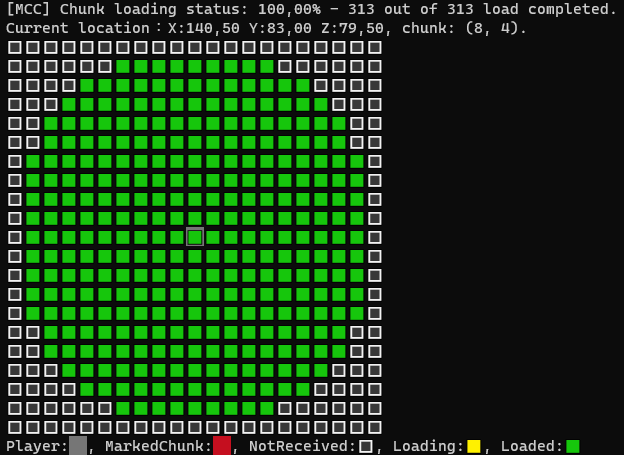
Displays the chunk loading status in a nice way.
Babala
To use this feature you need to enable the Terrain and Movements
Note
You need a terminal with emoji support, like Powershell 7, Windows Terminal or Alacritty, if you do not want emoji support and want to use cmd or powershell 5, disable emojis with:
enableemojiKapag naglalakbay sa pamamagitan ng paggamit ng mga portal, ang iyong lokasyon ay maaaring lumipat sa ibang biyome.
/chunk status [chunkX chunkZ|locationX locationY locationZ]How it looks:
dig
Description:
Dig a block on a specific coordinate.
Kapag naglalakbay sa pamamagitan ng paggamit ng mga portal, ang iyong lokasyon ay maaaring lumipat sa ibang biyome.
/dig <x> <y> <z>Example:
/dig 127 63 12Using relative coordinates:
/dig ~ ~-1 ~2
dropitem
Description:
Drop all items of a specific type from your inventory.
Note
You need to have Inventory Handling enabled in order for this to work.
Kapag naglalakbay sa pamamagitan ng paggamit ng mga portal, ang iyong lokasyon ay maaaring lumipat sa ibang biyome.
/dropitem <itemtype>Note
All item types can be found here.
Example:
/dropitem diamond
enchant
Note
You need to have Inventory Handling enabled in order for this to work.
Description:
Allows you to enchant items in an enchanting table.
You need to first open an enchanting table and then place and item that you want to enchant and lapis in the enchanting table, and then you can execute the command.
To open an enchanting table you can use the
useblockcommand.Kapag naglalakbay sa pamamagitan ng paggamit ng mga portal, ang iyong lokasyon ay maaaring lumipat sa ibang biyome.
Basic usage:
/enchant <top|middle|bottom>
effects
Description:
Lists the status effects currently applied to your player.
Kapag naglalakbay sa pamamagitan ng paggamit ng mga portal, ang iyong lokasyon ay maaaring lumipat sa ibang biyome.
/effects
entity
Description:
Attack an entity, use an entity or get a list of entities around you.
Note
You need to have Inventory Handling and Entity Handling enabled in order for this to work.
Kapag naglalakbay sa pamamagitan ng paggamit ng mga portal, ang iyong lokasyon ay maaaring lumipat sa ibang biyome.
Basic usage:
/entity <id|entitytype> <attack|use>Get a list of entities around you:
/entityNote
All entity types can be found here.
Examples:
Attack a Zombie:
/entity Zombie attack
execif
Description:
Allows you to execute a command if a specific condition is met.
The condition is a C# expression and the local variables you set using
set,setrndor the configuration file can be used.The condition is always returned as a boolean, so only comparison can be done, if needed cast the expression result to bool.
Also the instance of MCC is available with
MCC.Note
All local variables are treated as strings in the app, when comparing their values, you can use
<variable> == "<value>", or better use.EqualsmethodKapag naglalakbay sa pamamagitan ng paggamit ng mga portal, ang iyong lokasyon ay maaaring lumipat sa ibang biyome.
Basic usage:
/execif <condition (C# expression)> <command>Examples:
Setting a variable and using it:
/set test=Something
/execif 'test == "Something"' "send Success!"
/set test2=1 /execif 'test2 == "1"' "send Success 2!"Basic C# expression:
/execif "1 + 2 + 3 == 6" "send Success!"Using MCC class:
/execif "MCC.GetHealth() == 20.0" "send Success!"Using in combination with
execmulti:/execif "1 == 1" "execmulti send 1 -> send 2 -> send 3"Note
You can use single quote (
') to wrap your expression if the expression contains double quote (")Adding back-slash (
\) before the double quote will also work (/execif "test == \"Something\"" "send Success!")
execmulti
Description:
Allows you to execute multiple commands in succession on a single line, useful for debugging or when using
execifCommands are separated by
->Kapag naglalakbay sa pamamagitan ng paggamit ng mga portal, ang iyong lokasyon ay maaaring lumipat sa ibang biyome.
Basic usage:
execmulti <command 1> -> <command 2> -> <command 3> -> ...Examples:
/execmulti send 1 -> send 2 -> send 3 -> sneak
quit
Alias:
exitDescription:
Disconnect from the server and close the application
reco
Description:
Disconnect and reconnect to the server
Kapag naglalakbay sa pamamagitan ng paggamit ng mga portal, ang iyong lokasyon ay maaaring lumipat sa ibang biyome.
/reco [account]Note
[account]is an account alias defined in accounts file, for more info check out accountlist
reload
Description:
Reloads the active configuration file and chat bots.
Note
Some settings are not reloaded because they are used before client initialization. Settings passed on the command line also override file values.
Kapag naglalakbay sa pamamagitan ng paggamit ng mga portal, ang iyong lokasyon ay maaaring lumipat sa ibang biyome.
/reload
recipebook
Description:
List unlocked recipe book entries and ask the server to place one of them into the active crafting inventory.
Note
You need to have Inventory Handling enabled in order for this command to work.
Note
craftandcraftallneed an active player crafting grid, crafting table, furnace, blast furnace, smoker, or stonecutter inventory.Babala
Recipe book crafting is supported on Minecraft
1.13+.listshows the recipe book entries MCC is currently tracking.On newer versions, the list can contain numeric display ids instead of plain recipe names. If you see something like
838: Oak Planks, use838withcraftorcraftall.craftandcraftallsend a recipe-book request to the server. They do not automatically take the result item for you. After the recipe appears in the active inventory, take the output slot the same way you would handle any other inventory action.Kapag naglalakbay sa pamamagitan ng paggamit ng mga portal, ang iyong lokasyon ay maaaring lumipat sa ibang biyome.
/recipebook list/recipebook craft <recipe id>/recipebook craftall <recipe id>Examples:
Show the currently tracked recipe book entries:
/recipebook listRequest one recipe placement:
/recipebook craft minecraft:oak_planksOn newer versions, use the numeric id shown by
/recipebook list:/recipebook craftall 838If the recipe is placed in the player crafting grid, take the result from slot
0:/inventory player click 0
clear-console
Description:
Clear the visible console output.
In TUI mode this clears the log panel. In the classic console it clears the terminal screen.
Kapag naglalakbay sa pamamagitan ng paggamit ng mga portal, ang iyong lokasyon ay maaaring lumipat sa ibang biyome.
/clear-console
/cc
connect
Description:
Go to the given server and resume the script
Kapag naglalakbay sa pamamagitan ng paggamit ng mga portal, ang iyong lokasyon ay maaaring lumipat sa ibang biyome.
/connect <server> [account]Note
<server>is either a server IP or a server alias defined in servers file, for more info check out serverlistNote
[account]is an account alias defined in accounts file, for more info check out accountlist
script
Description:
Run a script containing a list of commands
Kapag naglalakbay sa pamamagitan ng paggamit ng mga portal, ang iyong lokasyon ay maaaring lumipat sa ibang biyome.
/script <script name>
send
Description:
Send a message or a command to the server
Kapag naglalakbay sa pamamagitan ng paggamit ng mga portal, ang iyong lokasyon ay maaaring lumipat sa ibang biyome.
/send <text>
respawn
Description:
Use this to respawn if you are dead (like clicking "respawn" in-game)
Kapag naglalakbay sa pamamagitan ng paggamit ng mga portal, ang iyong lokasyon ay maaaring lumipat sa ibang biyome.
/respawn
log
Description:
Display some text in the console (useful for scripts)
Kapag naglalakbay sa pamamagitan ng paggamit ng mga portal, ang iyong lokasyon ay maaaring lumipat sa ibang biyome.
/log <text>Example:
/log this is some text
list
Description:
List players logged in to the server (uses tab list info sent by server)
Kapag naglalakbay sa pamamagitan ng paggamit ng mga portal, ang iyong lokasyon ay maaaring lumipat sa ibang biyome.
/list
tab
Description:
Show the current player tab list in a more detailed format than
/list.In the classic console,
/tabprints a colored table with ping and player names. Team prefixes, suffixes, and display names are applied when the server sends them.In TUI mode,
/tabopens a live overlay that refreshes automatically while it is visible. PressEscto close it.If you want a separate team column, enable Console.TabList.ShowTeams.
Kapag naglalakbay sa pamamagitan ng paggamit ng mga portal, ang iyong lokasyon ay maaaring lumipat sa ibang biyome.
/tabNotes:
/tabuses the tab list information sent by the server, so players hidden from the server tab list will not appear here.- The TUI overlay follows the live player list, so joins, leaves, ping updates, and scoreboard team updates show up without reopening it.
set
Description:
Set a value which can be used as
%variable%in further commandsKapag naglalakbay sa pamamagitan ng paggamit ng mga portal, ang iyong lokasyon ay maaaring lumipat sa ibang biyome.
/set <variable>=<value>Examples:
/set abc=123
setrnd
Description:
Set a
%variable%randomly to one of the provided valuesKapag naglalakbay sa pamamagitan ng paggamit ng mga portal, ang iyong lokasyon ay maaaring lumipat sa ibang biyome.
/setrnd <variable> string1 "\"string2\" string3"Examples:
/setrnd <variable> -7 to 10(Set a
%variable%to a number from -7 to 10)
sneak
Description:
Toggle sneaking.
Kapag naglalakbay sa pamamagitan ng paggamit ng mga portal, ang iyong lokasyon ay maaaring lumipat sa ibang biyome.
/Sneak
tps
Description:
Get the server TPS (Ticks Per Second).
Kapag naglalakbay sa pamamagitan ng paggamit ng mga portal, ang iyong lokasyon ay maaaring lumipat sa ibang biyome.
/tps
teams
Description:
List all scoreboard teams the server has sent, along with their members and settings.
Kapag naglalakbay sa pamamagitan ng paggamit ng mga portal, ang iyong lokasyon ay maaaring lumipat sa ibang biyome.
/teamsExample output:
Team 'RedTeam' (display: RedTeam, color: 12, prefix: '', suffix: '', nameTagVisibility: always, collisionRule: always, friendlyFire: True, seeInvisibles: True)
  Members (2): Steve, Alex
Team 'BlueTeam' (display: BlueTeam, color: 9, prefix: '', suffix: '', nameTagVisibility: always, collisionRule: always, friendlyFire: True, seeInvisibles: True)
  No members.
useitem
Description:
Use the item in your hand, including use-on-block actions like shovel flattening.
Note
You need to have Inventory Handling enabled in order for this to work.
Babala
The Inventory Handling is currently supported on
1.8+and is unavailable on1.4.6 - 1.7.10.Kapag naglalakbay sa pamamagitan ng paggamit ng mga portal, ang iyong lokasyon ay maaaring lumipat sa ibang biyome.
/useitemUse the item from a specific hand:
/useitem <mainhand|offhand>Use the item on a specific block:
/useitem <x> <y> <z>Use the item from a specific hand on a specific block:
/useitem <x> <y> <z> <mainhand|offhand>
useblock
Description:
Place a block from a hand on a specific coordinate or open an inventory:
- chest/trap chest
- furnace
- brewing stand
- dispenser/dropper
- hopper
- shulker
- loom
Note
You need to have Inventory Handling and Terrain and Movements enabled in order for this to work.
Note
Not all inventories have a GUI representation in an ASCII art format.
Babala
The Inventory Handling is currently supported on
1.8+and is unavailable on1.4.6 - 1.7.10.Kapag naglalakbay sa pamamagitan ng paggamit ng mga portal, ang iyong lokasyon ay maaaring lumipat sa ibang biyome.
/useblock <x> <y> <z>Example:
/useblock 43 72 7
follow
Description:
Make the bot follow a player.
Note
This command is available only when the Follow Player chat bot is enabled.
Note
You need to have Inventory Handling enabled in order for this to work.
Note
You need to have Entity Handling enabled in order for this to work.
Kapag naglalakbay sa pamamagitan ng paggamit ng mga portal, ang iyong lokasyon ay maaaring lumipat sa ibang biyome.
/follow <player name|stop>Example:
/follow milutinke
wait
Description:
Wait X ticks (20 ticks = ~1 second. Only for scripts)
Kapag naglalakbay sa pamamagitan ng paggamit ng mga portal, ang iyong lokasyon ay maaaring lumipat sa ibang biyome.
Fixed time:
/wait <time>Random time:
/wait <minimum time> to <maximum time>Tip sa Tagaagpang
You can use
-instead oftoExamples:
/wait 20/wait 20 to 100/wait 20-35
move
Description:
Used for moving when terrain and movements feature is enabled.
Note
You need to have Terrain and Movements enabled in order for this to work.
Babala
The Terrain and Movements is currently not supported in
1.4.6 - 1.6.Kapag naglalakbay sa pamamagitan ng paggamit ng mga portal, ang iyong lokasyon ay maaaring lumipat sa ibang biyome.
/move <on|off|get|up|down|east|west|north|south|center|x y z|gravity [on|off]> [-f]: walk or start walking. "-f": force unsafe movements like falling or touching fireExamples:
Enable gravity
/move gravity onMove to coordinates:
/move 125 72 34Move to a center of a block:
/move center
nameitem
Description:
This command allows you to name an item when you have an Anvil inventory open and an item in the first slot (slot number 0),
After you place an item in the first slot of the anvil, use this command, and then do a click on the slot 2 to get an item from the anvil, then do a click on an empty slot in your inventory.
Kapag naglalakbay sa pamamagitan ng paggamit ng mga portal, ang iyong lokasyon ay maaaring lumipat sa ibang biyome.
/nameitem <name of the item>Example:
/nameitem My super duper sword 2000Full Example with anvil:
# Open an anvil
/useblock 12 74 321

# Click on an axe in slot 12
/inventory container click 12

# Put an axe to the slot 0 in anvil
/inventory container click 0

# Set the new name
/nameitem My fancy axe

# Click on the axe in slot 2 in the anvil
/inventory container click 2

# Put the axe back in your inventory in slot 12
/inventory container click 12

# Close the anvil
/inventory container close
look
Description:
Used for looking at direction when terrain and movements is enabled
Kapag naglalakbay sa pamamagitan ng paggamit ng mga portal, ang iyong lokasyon ay maaaring lumipat sa ibang biyome.
/look <x y z|yaw pitch|up|down|east|west|north|south>Examples:
/look up/look east
inventory
Description:
Used for inventory manipulation.
Note
You need to have Inventory Handling enabled in order for this to work.
Babala
The Inventory Handling is currently supported on
1.8+and is unavailable on1.4.6 - 1.7.10.MCC defines inventories as containers internally, so player's inventory, chests, droppers, dispensers, hoppers, chest minecarts, barrels, furnaces, etc... are all considered a container, and each one of them has it's ID, the words container and inventory can be used interchangeably.
Inventory has slots and each one of them has an id.
Note
This command DOES NOT physically open a container (eg. chest), for that you need to use
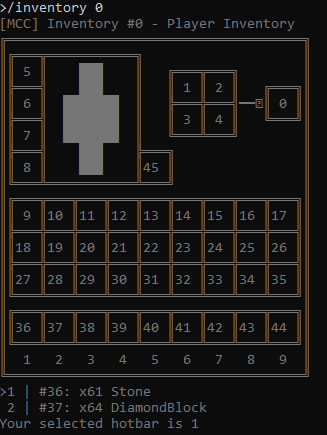
useblockcommand first.An example of player inventory with annotated IDs in ASCII art and a list of items:
Kapag naglalakbay sa pamamagitan ng paggamit ng mga portal, ang iyong lokasyon ay maaaring lumipat sa ibang biyome.
Basic usage:
/inventory <player|container|<id>> <action> [action parameters] | /inventory <inventories/i> | /inventory <search/s> <item type> [amount]Note
player and container can be simplified with p and c accordingly
Actions:
clickdrop
Show/Preview items in an inventory:
/inventory <player|id>Click/Shift-Click on an item in an inventory:
/inventory <player|container|<id>> <click> <slot id> [left|right|middle|Shift|ShiftRight]Note
The default click is left click
Close an inventory:
/inventory <player|container|<id>> closeDrop item(s) from an inventory:
/inventory <player|id> drop <slot id> <number of items|all>Note
To drop all items from a slot, you can use:
allGive an item to the player inventory from a creative menu when in the creative mode:
/inventory creativegive <slot id> <item type> <amount>Note
To find item types, check out this list
Delete an item from a player's inventory when in the creative mode:
/inventory creativedelete <slot id>Show all available inventories:
/inventory inventoriesSearch for an item of specified type in available inventories:
/inventory search <item type>Examples:
Show player's inventory:
/inventory playerShow/Preview items in an inventory using an id:
/inventory 3Click on an item in player's inventory in slot number/id
36:/inventory player click 36Right-Click on an item in slot number/id
4in an inventory with an id2:/inventory 2 click 4 rightClose an inventory with an id
2:/inventory 2 closeDrop a single item from a player's inventory in slot number/id
36:/inventory player drop 36 1Drop all items from a player's inventory in slot number/id
37:/inventory player drop 37 allGive an item to the player inventory from a creative menu when in the creative mode:
/inventory creativegive 36 diamondblock 64Note
To find item types, check out this list
Delete an item from a player's inventory in slot number/id
36when in the creative mode:/inventory creativedelete 36Search for 10 Slime Blocks in available inventories:
/inventory s SlimeBlock 10
console-chat
Description:
Temporarily show or hide chat in the console.
This changes the current session only. If you want the same behavior every time MCC starts, use
Console.General.Display_Chat.Kapag naglalakbay sa pamamagitan ng paggamit ng mga portal, ang iyong lokasyon ay maaaring lumipat sa ibang biyome.
/console-chat
/console-chat on
/console-chat off
Examples:
Hide chat until you turn it back on:
/console-chat offShow chat again:
/console-chat on
dialog
Description:
Browse and interact with dialogs sent by the server. Dialogs are popups with a title, body text, and buttons. TUI mode gives the best experience -- use
/dialog opento view the dialog in a full-screen overlay.When a server shows a dialog, MCC prints:
[MCC] Server showed custom dialog: Server Notice. Use dialog show.Run
/dialog showto see the full dialog. Buttons show up like this:Actions: [1] OK (close) [2] Visit (command) [3] Rules (show dialog)The text in parentheses tells you what the button does:
(close)closes the dialog,(command)sends a chat command,(show dialog)opens another dialog.Dialog types:
Dialogs come in a few shapes. You might see these in the output of
/dialog show:Notice -- A popup with a title, optional body, and one button.
Type: Notice

Welcome to the server!

Body: Read the rules before playing.

Actions:
  [1] OK (close)
Confirmation -- A choice between two buttons.
Type: Confirmation

Reset your progress?

Actions:
  [1] Yes (close)
  [2] No (close)
Multi-action -- A grid of buttons.
Type: Multi-action

Choose a destination

Actions:
  [1] Spawn (close)
  [2] Shop (close)
  [3] Arena (close)
Dialog list -- A list of sub-dialogs. Clicking one opens another dialog.
Type: Dialog list

Help Topics

Actions:
  [1] Rules (show dialog)
  [2] Commands (show dialog)
Server links -- Shows the server's configured links as buttons. May be empty.
Type: Server links

Server Links
Kapag naglalakbay sa pamamagitan ng paggamit ng mga portal, ang iyong lokasyon ay maaaring lumipat sa ibang biyome.
/dialog
/dialog show
/dialog open
/dialog click <index>
/dialog click-label <label>
/dialog set <input> <value>
/dialog input <input> <value>
/dialog cancel
/dialog dismiss
Examples:
/dialog show
/dialog click 1
/dialog click-label Teleport
/dialog set name MyPlayer
/dialog dismiss
See what dialog is currently shown, click the first button, click a button by its text, fill in an input, or close the dialog.
debug
Description:
Toggle debug messages, useful for chatbot developers.
help
Description:
Show commands help.
Note
Use "/send /help" for server help