
配置
Minecraft Console Client can be configured through both command-line parameters and the configuration file.
By default, MCC stores its settings in MinecraftClient.ini, which is created the first time you run the program. You can also pass a custom configuration file path as the first argument when starting MCC. See Usage for examples.
備註
- Some less common settings are not repeated here. The generated config file contains inline descriptions for every setting.
- Bot-specific settings are documented in Chat Bots.
參數配置文件
格式
The configuration file uses the TOML format. Options are key-value pairs grouped into sections.
Sections are defined between square brackets, for example [This is a section].
Settings are written as key-value pairs, with the key and value separated by =, for example some-setting = "some value".
以 # 開頭的行是註釋,無關程式運作,純粹在描述事情而已。
For the full syntax and data types, see the official TOML documentation.
這些是範例
[SectionNameHere]
Setting_Name = "this is some name"
Setting_Something = 15

[OtherSection]
# This is a comment explaining what this setting/option does
Other_Setting = true  # This also is a comment

[ThirdSection]
Section_Enabled = true
colors = [ "red", "yellow", "green" ]

[ThirdSection.Subsection]
Coordinate = { x = 145, y = 64, z = 2045 }
主要部分
一般設定
- 主要變數:
Main.General
Account, Server, and Authentication settings
Account
描述:
This setting is where you provide your account login information.
For Microsoft accounts, set
Loginto your Microsoft email. You do not need to provide a password because MCC uses the OAuth 2.0 device code flow for authentication (you sign in through your browser, with full 2FA support).For offline accounts, set
Loginto your desired in-game name andPasswordto-.For Yggdrasil accounts, set
LoginandPasswordto the credentials for your authlib server.格式:
Account = { Login = "<email>" }類型:
inline table範例:
Microsoft account (password not needed):
Account = { Login = "player@example.com" }Offline account:
Account = { Login = "Steve", Password = "-" }
Server
描述:
這是你提供遊戲服務器地址的位置,“Host”可以填寫域名或IP地址。 (“Port”可不填寫,程式會自動解析🧐)
Host也可以從下方的"伺服器列表"填寫伺服器代號。
格式:
Server = { Host = "<ip>", Port = <port> }類型:
inline table例如:
Server = { Host = "mysupercoolserver.com" }Server = { Host = "192.168.1.27", Port = 12345 }Server = { Host = "ServerAlias1" }
AccountType
Description:
This setting defines the account type:
mojang,microsoft, oryggdrasil.Note
Use
microsoftfor normal Microsoft accounts.yggdrasilis for custom authlib/Yggdrasil servers.類型:
string默認值:
microsoft例如:
AccountType = "microsoft"
Interactive login
If both Account.Login and Account.Password are empty when MCC starts, it asks which account type to use instead of assuming Microsoft login.
- Choose Offline to enter an in-game username. MCC saves the account as an offline account.
- Choose Online (Microsoft) to continue with the device-code sign-in. MCC shows the code and link, then opens the sign-in page in your browser.
- Choose Yggdrasil to enter the username, password, and authlib-injector URL for the account server. MCC checks the URL before it continues. If the address is malformed, unreachable, or does not return authlib-injector metadata, MCC explains the problem and asks for another URL.
After a successful login, MCC saves the account details and selected account type in the configuration file. Later starts use those saved details and do not show this prompt. To choose a different method, edit or clear the account settings in the configuration file.
Method
描述:
您可以在這裡選擇MIcrosoft帳號的登入方式 是要"mcc視窗中"還是在"網頁中"。
mcc或browser. Themccmethod uses the OAuth 2.0 device code flow: MCC will display a code and a URL, and you complete the sign-in (including 2FA) in your browser. Thebrowsermethod opens a sign-in page in your browser and you paste the resulting code back into MCC.類型:
string默認值:
mcc例如:
Method = "mcc"
AuthServerUrl
描述:
Use this setting with
AccountType = "yggdrasil". It is the complete base URL of the authlib-injector or Yggdrasil service MCC uses for login, session checks, and profile key requests.The URL must start with
http://orhttps://and include any path used by the service. For example, an authlib-injector server may use/authlib-injector/as its base path.An existing multi-field Yggdrasil configuration is converted to this URL automatically. When MCC writes the configuration after migration, it removes the previous Yggdrasil section.
類型:
stringDefault:
""例如:
Account = { Login = "player@example.com", Password = "password" }
AccountType = "yggdrasil"
AuthServerUrl = "https://auth.example.com/api/yggdrasil/"
Account = { Login = "player", Password = "password" } AccountType = "yggdrasil" AuthServerUrl = "http://127.0.0.1:25585/authlib-injector/"
AuthUser
描述:
This setting allows for Yggdrasil authlib multi-user selection. It selects which profile MCC should use when the authlib/Yggdrasil server returns multiple available profiles. Leave it empty to pick the profile interactively.
類型:
stringDefault:
""例如:
AuthUser = "SomePlayer"
進階設定
- 主要變數:
Main.Advanced
Advanced settings (Language, Version, Features, and more)
Language
描述:
在這您可以選擇您想使用的本地語言📖。
當您連接到 1.6+ 服務器時,會需要一個合適的語言來正確翻譯一些聊天內容。這些文件是來引導您,如何根據狀況來選擇合適的翻譯文件🔖
如果您的電腦有安裝了 Minecraft,程式將沿用您 Minecraft 的語言習慣
en_GB.language,或者從 Mojang 的伺服器下載它🤖。 您可以在設置文件中,選擇您想使用的語言~To find your language code, check this list.
類型:
stringDefault:
en_us例如:
Language = "en_us"
EnableSentry
描述:
Set this to
falseto opt out of Sentry error reporting.類型:
boolean默認值:
true
LoadMccTranslation
描述:
Set this to
falseto keep MCC in English even when translated strings are available.類型:
boolean默認值:
true
LoadResourcePackTranslations
描述:
Set this to
falseto ignore translations provided by server resource packs. When enabled, MCC caches extracted resource-pack translation data locally so future joins can reuse it without downloading the pack again.類型:
boolean默認值:
true
LoadForgeModTranslations
描述:
Set this to
trueto load translations from local Forge mod jars for the mod IDs announced by the server. MCC first checks the folder fromForgeModTranslationPathwhen it is set. Otherwise it checks the localmodsfolder, and ifAutoDiscoverForgeModTranslationSourcesis enabled it also scans standard launcher folders such as.minecraft/mods, Prism Launcher instances, and CurseForge instances. MCC falls back toen_uswhen the selected locale is missing, and caches parsed results by jar hash.類型:
boolean默認值:
false
AutoDiscoverForgeModTranslationSources
描述:
Set this to
falseto stop scanning launcher-managed mod folders outside the current working directory. This setting only matters whenLoadForgeModTranslationsis enabled andForgeModTranslationPathis empty.類型:
boolean默認值:
true
ForgeModTranslationPath
描述:
Optional path to a mods folder. When this is set, MCC loads Forge mod translations from that folder instead of using automatic discovery.
If automatic discovery does not find the mod you need, copy that mod jar into the configured folder, or into the local
modsfolder next to MCC, and MCC will read translations from there without modifying the jar.類型:
stringDefault:
""
ConsoleTitle
Description:
如果你有需要,可以在這更改主控台的視窗名稱。 您可以改寫其中的變數。
類型:
string默認值:
"%username%@%serverip% - Minecraft Console Client"例如:
ConsoleTitle = "%username%@%serverip% - Minecraft Console Client"
InternalCmdChar
描述:
您可以在這更改內部 MCC 命令的開頭字符。
可用的選項
noneslashbackslash
類型:
string默認值:
slash例如:
InternalCmdChar = "slash"
MessageCooldown
描述:
在這您可更改發送訊息之間的,延遲時間,以避免濫發訊息被伺服器踢出。
類型:
float默認值:
1.0
MaxChatMessageLength
描述:
Overrides the maximum chat message length. By default, MCC caps messages at 100 characters on Minecraft 1.10 and below, and 256 characters on 1.11 and above. Set to
0to keep the default.Some servers (like Hypixel on 1.8) accept messages longer than the vanilla protocol default for that version. This setting lets you match whatever limit the server actually allows.
注意
Setting this to a value the server doesn't support may get you kicked. Only change it if you know the server accepts longer messages than the version default.
類型:
integerDefault:
0Range:
0-32767
BotOwners
描述:
這個設定讓你可以設定"機器人/客戶端"所有者名稱的地方,它可以配合一些插件使用。 名稱在數列中以字符串形式分隔,並以逗號分隔。
格式:
BotOwners = [ "<nick>", "<nick>", ... ]類型:
array of strings默認值:
[ "Player1", "Player2", ]例如:
BotOwners = [ "milutinke", "bradbyte", "BruceChen", ]注意
管理員可以在 1.19 之前的版本上冒充玩家
MinecraftVersion
描述:
您可以在這選擇您想要享受的遊戲版本。
格式:
MinecraftVersion = "<version>"類型:
string版本格式:
1.X.X類型:
string默認值:
auto例如:
MinecraftVersion = "1.18.2"Note
Current code support is
1.4.6through26.1.
EnableForge
描述:
您可以在這選擇您是否可以進入,沒有正版驗證的伺服器。
類型:
string可用的選項
autonoforce
Default:
noNote
強制啟用的選項適用版本為 MC 1.13 +
BrandInfo
Description:
您可以在這更改,MCC向伺服器說你是用什麼方式登入🤖。 隨心所欲用什麼身份都行, 例如:
vanilla,mcc,empty. 如果伺服器禁止機器人,您最好的選擇是vanilla 也就是原版登入身份組。類型:
string默認值:
mccNote
如果您想用MCC遊玩Hypixel 您需要將mcc改成
vanilla
ChatbotLogFile
描述:
您可以在這設定log文件的保存路徑,留空代表沒有log文件。
類型:
string默認值: Empty
例如:
ChatbotLogFile = "my-log.txt"
PrivateMsgsCmdName
描述:
您可以在這更改遠程控制機器人的命令開頭,例如原本/tell 來執行指令,如果將tell改成whisper,那麼以後就是用/whisper 當開頭來執行指令。
類型:
string默認值:
tell
ShowSystemMessages
Description:
如果您是 OP,您可以在此設定中選擇是否要查看系統消息(例如用命令方塊輸出)。
類型:
boolean默認值:
true
ShowXPBarMessages
描述:
您可以在這選擇是否想要看見BOSS血條的訊息。
類型:
boolean默認值:
true提示: 前提是BOSS不會要你的命,好讓你可以觀察牠👺,不然你會死的很慘。
ShowChatLinks
描述:
您在這可以選擇是否要解碼聊天室中出現的連結,並且在控制台中顯示連結⛓️。
類型:
boolean默認值:
true
ShowInventoryLayout
描述:
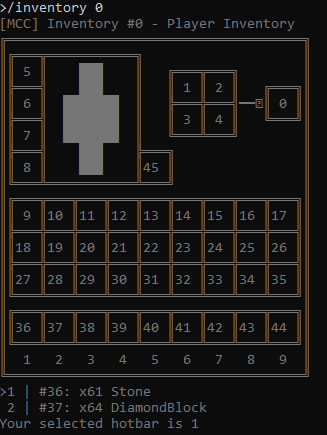
您在這可以選擇是否要在MCC主控台,以ASCII的字符藝術來顯示您遊戲內各種容器的樣式,指令是使用
/inventory來選擇你要查看的容器🧐。 (例如: /inventory 0 則會查看自身的背包。)它看起來就是這麼酷:
類型:
boolean默認值:
true
ShowEffectMessages
描述:
This setting controls whether MCC prints messages when one of your active effects is gained or expires.
Set it to
falseif a beacon or another repeated effect source is spamming the console.類型:
boolean默認值:
true
ShowEffectNamesInTUI
Description:
This setting lets you show full effect names and levels in the TUI status bar instead of the compact icon-only effect display.
類型:
boolean默認值:
false
TerrainAndMovements
描述:
您在這可以選擇是否要啟用"地形處理"的功能,以便你可以只透過指令
/move來完成與方塊的互動👻。注意
這項功能目前沒有支援這些版本
1.4.6 - 1.6.類型:
boolean默認值:
false
Note
有時在最新遊戲版本無法立即使用這項功能🙏,因為Mojang時常對此進行更改
InventoryHandling
Description:
您在這可選擇是否啟用,使用指令
/inventory來處理您的箱內寶物(可操作背包、箱子等容器)。注意
This feature is currently supported on
1.8+and is unavailable on1.4.6 - 1.7.10.類型:
boolean默認值:
false
EntityHandling
描述:
您在這可以選擇是否要啟用"與實體互動"的功能, 實體則是:玩家、怪物、礦車、村民等等...。
注意
This feature is currently not supported in
1.4.6 - 1.7.類型:
boolean默認值:
falseNote
有時在最新遊戲版本無法立即使用這項功能🙏,因為Mojang時常對此進行更改
SessionCache
描述:
您在這可以選擇您帳號登入資訊的三種儲存方式,1.disk暫存在硬碟中,2.memory暫存在記憶體中,3.none不儲存(這可能拖慢您登入的過程)。
使用
none選項來關閉功能。使用
disk選項,會將您的登入授權序號保存在硬碟中,如果沒保護你的 MCC資料夾,這可能會帶來一些安全風險。使用
memory選項,資料會在你關閉程式後刪除。類型:
string默認值:
disk
ProfileKeyCache
描述:
作用與
SessionCache相同,而這邊負責管理聊天身份與驗證彼此身份的密鑰。類型:
string默認值:
disk
ResolveSrvRecords
說明 :
您在這可填寫
no,fast(超時時間為五秒鐘), 或是yes.加入某些伺服器需要開啟此項。
類型:
string默認值:
fast
PlayerHeadAsIcon
說明:
您在這可以選擇是否啟用,使用玩家面板頭像作為視窗圖示,這僅在部分舊版控制檯中有效。
類型:
boolean默認值:
trueNote
只可以運作在 Windows XP-8 或 Windows 10 和一些老版本中
ExitOnFailure
說明:
Exit immediately with a nonzero status when a connection or login failure occurs. This bypasses MCC reconnect handling, including AutoRelog, so an external supervisor can restart MCC.
類型:
boolean默認值:
false
CacheScript
說明:
您在這可以選擇是否啟用,快取已編譯的指令碼,以便在低端裝置上更快的載入。
類型:
boolean默認值:
true
Timestamps
說明:
您在這可選擇是否啟用,在聊天資訊頭部新增時間戳。
類型:
boolean默認值:
false
AutoRespawn
說明:
您在這可選擇是否啟用,自動重生。
類型:
boolean默認值:
falseNote
(開啟前請確保你的出生點是安全的)
MinecraftRealms
說明:
您在這可選擇是否啟用,對加入我的世界領域(Realms)伺服器的支援🤝。
類型:
boolean默認值:
false
MoveHeadWhileWalking
Description:
您在這可選擇是否啟用,要在行走時的頭部運動,以避免觸發反作弊系統。
類型:
boolean默認值:
true
TcpTimeout
說明:
您可以在這調整,以秒為單位的超時標準。 這適合當您知道這有什麼作用時,再來更改。
類型:
integer默認值:
30
EnableEmoji
說明:
您可在這選擇是否啟用emoji表情,用於
chunk的指令顯示。類型:
boolean默認值:
true
MovementSpeed
說明:
您可在這調整,人物在遊戲裡的移動速度。
類型:
integer默認值:
2
注意
A movement speed higher than 2 may be considered cheating by some plugins.
IgnoreInvalidPlayerName
Description:
Minecraft player name can only consist of English letters, numbers, and underscore symbols. Other name will be considered as invalid and ignored by default.
類型:
boolean默認值:
true
帳號列表
主要變數:
Main.Advanced.AccountList說明:
此部分可讓您新增多個帳號,以便您可以在運行中輕鬆地在它們之間切換。
使用範例:
/connect <serverip> Player1類型:
array of inline tables格式:
<account nick> = { Login = "<email>", Password = "<password>" }範例:
Player1 = { Login = "playerone@email.com", Password = "thepassword" }
伺服器清單
主要變數:
Main.Advanced.ServerList說明:
此部分可讓您新增多個服務器別名,以便在服務器之間快速輕鬆地切換。 別名不能包含點或空格,名稱“localhost”不能用作別名。
使用範例:
/connect Server2類型:
array of inline tables格式:
<server alias> = { Host = "<ip>", Port = <port> }範例:
ServerAlias1 = { Host = "mc.awesomeserver.com" }
ServerAlias2 = { Host = "192.168.1.27", Port = 12345 }
簽名檔
主要變數:
Signature說明:
僅影響 Minecraft 1.19+。
此部分含有 Mojang 引入的新聊天報告(簽名和驗證)功能相關的設定。
Chat signing and verification settings
LoginWithSecureProfile
說明:
微軟帳戶專屬。 如果禁用,將無法簽署聊天和加入設定文件為
enforce-secure-profile=true的服務器類型:
boolean默認值:
true
SignChat
說明:
是否簽署從 MCC 發送的聊天訊息。
類型:
boolean默認值:
true
SignMessageInCommand
Description:
是否對 MCC 發送出的命令裡,包含的消息進行簽名。
像是
/msg和/me中的消息。類型:
boolean默認值:
true
MarkLegallySignedMsg
Description:
使用綠色塊,來標記具有合法簽名的聊天訊息。
類型:
boolean默認值:
true
MarkModifiedMsg
說明:
是否使用黃色色塊標識被伺服器更改過的聊天。
類型:
boolean默認值:
true
MarkIllegallySignedMsg
說明:
使用紅色塊,來標記具沒有有合法簽名的聊天訊息。
類型:
boolean默認值:
true
MarkSystemMessage
Description:
使用灰色塊,標記系統消息(因為始終都沒有簽名)。
類型:
boolean默認值:
true
ShowModifiedChat
Description:
設置為 true 將顯示被服務器修改的訊息,false 則顯示經過簽名的原始訊息。
類型:
boolean默認值:
true
ShowIllegalSignedChat
Description:
是否在沒有合法簽名的命令中,顯示聊天和消息。
類型:
boolean默認值:
true
App Vars values section
- Section header:
AppVar.VarStirng
Logging and filtering settings
DebugMessages
Description:
此設置,可讓您默認是否要在客戶端運行時查看Debug消息,這在出現錯誤同時想要報告問題時非常有用,或者如果您正在開發腳本/機器人並且想要Debug它 .
類型:
boolean默認值:
false
ChatMessages
Description:
此設定可讓您是否要更改查看聊天消息。
類型:
boolean默認值:
true
InfoMessages
Description:
此設置可讓您定義是否要查看信息消息。
大多數消息來自 MCC。
類型:
boolean默認值:
true
WarningMessages
Description:
此設置可讓您定義是否要查看警告消息。
類型:
boolean默認值:
true
ErrorMessages
Description:
此設置可讓您定義是否要查看錯誤消息。
類型:
boolean默認值:
true
ChatFilterRegex
Description:
此設置可讓您定義是否要過濾使用 Regex 表達式記錄的聊天消息。
更多關於 Regex 在這.
類型:
string默認值:
.*Note
默認不過濾任何東西
DebugFilterRegex
Description:
此設置可讓您定義是否要過濾使用 Regex 表達式記錄來Debug消息。
更多關於 Regex 在這.
類型:
string默認值:
.*Note
默認不過濾任何東西
FilterMode
Description:
Can be
disable,blacklistorwhitelist"disable" will disable the filter,
blacklisthides the messages, while thewhitelistshows the messages that match the Regex expression that you've defined.類型:
stringDefault:
disable
LogToFile
Description:
This setting allows you to define if your want to log messages to a file.
類型:
boolean默認值:
false
LogFile
Description:
This setting allows you to define a path to a file where you want to log messages if you have enabled logging to a file with
LogToFile = true.類型:
stringDefault:
console-log.txtNote
%username% and %serverip% will be substituted with your username and the IP address of the server you are connected to. So you can use something like:
console-log-%username%-%serverip%.txt
PrependTimestamp
Description:
This setting allows you to define if your want prepend timestamps to messages that are written to the log file.
類型:
boolean默認值:
false
SaveColorCodes
Description:
This setting allows you to define if your want keep the server color codes in the logged messages.
Example of a color coded message:
§bsome message類型:
boolean默認值:
false
App Vars section
Section header:
AppVarDescription:
This section allows you to define your own custom settings/variables which you can use in scripts, bots or other setting fields.
To define a variable/setting, simply make a new line with the following format under the
[AppVar.VarStirng]section:Note
%username%,%login%,%serverip%,%serverport%,%datetime%,%date%,%players%are reserved read-only variablesSection header:
AppVar.VarStirng範例:
your_var = "your_value"
"your var 2" = "your value 2"
Console section
Section header:
ConsoleDescription:
Console-related settings for input handling and command suggestions.
Console General section
- Section header:
Console.General
Console display settings
ConsoleColorMode
Description:
Use
disable,legacy_4bit,vt100_4bit,vt100_8bit, orvt100_24bit.If the terminal shows garbled escape sequences like
←[0m, trylegacy_4bitor disable color output.類型:
stringDefault:
vt100_24bit
Display_Input
Description:
Set this to
falseif you do not want MCC to echo the current input line while typing.類型:
boolean默認值:
true
Display_Chat
Description:
Set this to
falseif you want MCC to keep receiving chat without printing it in the console.This only affects console output. It does not stop bots from receiving chat, and it does not turn off chat file logging.
類型:
boolean默認值:
true
History_Input_Records
Description:
Maximum number of remembered console input lines.
類型:
integerDefault:
32
Console CommandSuggestion section
Section header:
Console.CommandSuggestionDescription:
Command completion suggestions in the console.
Command suggestion settings
Enable
Description:
Set this to
falseto disable command completion suggestions.類型:
boolean默認值:
true
Enable_Color
Description:
Enables colored suggestions when the terminal color mode supports it.
類型:
boolean默認值:
true
Use_Basic_Arrow
Description:
Use this if the suggestion arrows are not displayed correctly in your terminal.
類型:
boolean默認值:
false
Max_Suggestion_Width
Description:
Maximum width of the suggestion popup.
類型:
integer默認值:
30
Console TabList section
Section header:
Console.TabListDescription:
Settings for the
/tabcommand and the live tab overlay in TUI mode.
Tab list settings
ShowTeams
Description:
Show a separate team column in
/taboutput.This is disabled by default so
/tabstays closer to the in-game player list and keeps the output compact. Team formatting still applies to player names even when the extra column is hidden.When enabled, MCC shows the team display name when the server provides one. If the server only sends an internal team identifier, MCC hides that noise instead of printing a raw UUID-like value.
類型:
boolean默認值:
false例如:
[Console.TabList]
ShowTeams = true
Max_Displayed_Suggestions
Description:
Maximum number of suggestions shown at once.
類型:
integerDefault:
6
Color fields
Description:
The suggestion text, tooltip, and arrow colors are stored as hex color strings such as
#f8fafc.MCC validates these values on startup and falls back to built-in defaults if a color string is invalid.
Proxy section
Section header:
ProxyDescription:
Connect to a server via a proxy instead of connecting directly.
Proxy settings
Enabled_Login
Description:
If Mojang session services or Microsoft login services are blocked on your network or your ip is blacklisted or rate limited by Microsoft, set the value to
true.類型:
boolean默認值:
false
Enabled_Update
Description:
Use the proxy when MCC checks for updates.
類型:
boolean默認值:
false
Enabled_Ingame
Description:
是否通過代理連線Minecraft遊戲伺服器。
If connecting to a port 25565 (Minecraft) is blocked on your network, set the value to
trueto login and connect using the proxy.類型:
boolean默認值:
false注意
Make sure your server rules allow Proxies or VPNs before setting the setting to
true, or you may face consequences!
Server
Description:
The proxy server IP and port.
代理伺服器必須允許HTTPS登入。
格式:
Server = { Host = "<ip>", Port = <port> }Default:
{ Host = "0.0.0.0", Port = 8080 }
Proxy_Type
Description:
The type of your proxy.
可用的選項
HTTPSOCKS4SOCKS4aSOCKS5
類型:
stringDefault:
HTTP
Username
Description:
The proxy account username.
Only needed for password protected proxies.
Default: ``
Password
Description:
The proxy account password.
Only needed for password protected proxies.
Default: ``
MCSettings section
Section header:
MCSettingsDescription:
Client settings related to language, render distance, difficulty, chat and skins.
Game client settings
Enabled
Description:
This setting allows you to specify if you want to use settings from this section.
類型:
boolean默認值:
true
Locale
Description:
Use any language implemented in Minecraft
類型:
stringDefault:
en_US
RenderDistance
Description:
Render distance in chunks:
0 - 255類型:
integerDefault:
8
Difficulty
Description:
可用的選項
peacefuleasynormaldifficult
類型:
stringDefault:
peaceful
ChatMode
Description:
This setting allows you to effectively mute yourself.
可用的選項
enabled(You can chat)commands(You can only do commands)disabled
類型:
stringDefault:
enabled
ChatColors
Description:
This setting allows you to disable chat colors.
類型:
boolean默認值:
true
MainHand
Description:
This setting allows you to specify your main hand.
Available values:
rightandleft類型:
stringDefault:
left
MCSettings Skin section
Section header:
MCSettings.SkinDescription:
Skin options.
Skin visibility settings
Cape
Description:
This setting allows you to specify if you want to have your skin cape shown.
類型:
boolean默認值:
true
Hat
Description:
This setting allows you to specify if you want to have your skin hat shown.
類型:
boolean默認值:
true
Jacket
Description:
This setting allows you to specify if you want to have your skin jacket shown.
類型:
boolean默認值:
false
Sleeve_Left
Description:
This setting allows you to specify if you want to have your left sleeve shown.
類型:
boolean默認值:
false
Sleeve_Right
Description:
This setting allows you to specify if you want to have your right sleeve shown.
類型:
boolean默認值:
false
Pants_Left
Description:
This setting allows you to specify if you want to have your left part of the pants shown.
類型:
boolean默認值:
false
Pants_Right
Description:
This setting allows you to specify if you want to have your right part of the pants shown.
類型:
boolean默認值:
false
Chat Format section
Section header:
ChatFormatDescription:
The MCC does it best to detect chat messages, but some server have unusual chat formats.
When this happens, you'll need to configure the chat format yourself using settings from this section.
The MCC uses Regular Expressions (Regex) to detect the chat formatting, in case that you're not familiar with Regex you can use the following resources to learn it and test it out:
速成課程 :
In-depth tutorials:
Testing Regex expressions online:
Chat format settings
Builtins
Description:
This setting allows you to define if your want use the default chat formats.
Set to
falseto avoid conflicts with custom formats.類型:
boolean默認值:
true
UserDefined
Description:
This setting allows you to define if your want to use the custom chat formats defined bellow using Regex.
Set to
trueto use the custom formats defined inPublic,PrivateandTeleportRequest.類型:
boolean默認值:
false
Public
Description:
This setting allows you to specify a custom chat message format using Regex (Regular expressions).
更多關於 Regex 在這.
Only works when
Builtinsis set tofalse.類型:
stringDefault:
Public = "^<([a-zA-Z0-9_]+)> (.+)$"
Private
Description:
This setting allows you to specify a custom chat message format for private messages using Regex (Regular expressions).
更多關於 Regex 在這.
Only works when
Builtinsis set tofalse.類型:
stringDefault:
Private = "^([a-zA-Z0-9_]+) whispers to you: (.+)$"
TeleportRequest
Description:
This setting allows you to specify a custom chat message format for a Teleport request using Regex (Regular expressions).
更多關於 Regex 在這.
Only works when
Builtinsis set tofalse.類型:
stringDefault:
TeleportRequest = '^([a-zA-Z0-9_]+) has requested (?:to|that you) teleport to (?:you|them)\.$'
Chat Bot section
Section header:
ChatBotDescription:
This top-level section groups the built-in bot configs that ship with MCC.
The detailed options for each bot are documented in Chat Bots, so this page only covers the shared runtime and client settings.